



If you've ever spent way too much time digging through JSON files trying to get your terminal prompt just right, this post is for you. I'm incredibly excited to share something I've been working on: the Oh My Posh Visual Configurator—a web-based drag-and-drop builder that makes creating beautiful terminal prompts actually fun (yes, really!).
The Problem We All Know Too Well
Let me be honest with you—I love Oh My Posh. It's hands down one of the best tools for customizing your terminal prompt across PowerShell, Bash, Zsh, Fish, and basically any shell you can think of. But here's the thing: configuring it has always meant diving into JSON, YAML, or TOML files and doing a lot of trial-and-error to get segments positioned correctly.
You know the drill:
- Edit the config file
- Save it
- Open a new terminal to see if it worked
- Realize the colors clash
- Go back to step 1
- Repeat for the next hour
There had to be a better way.
Enter the Visual Configurator
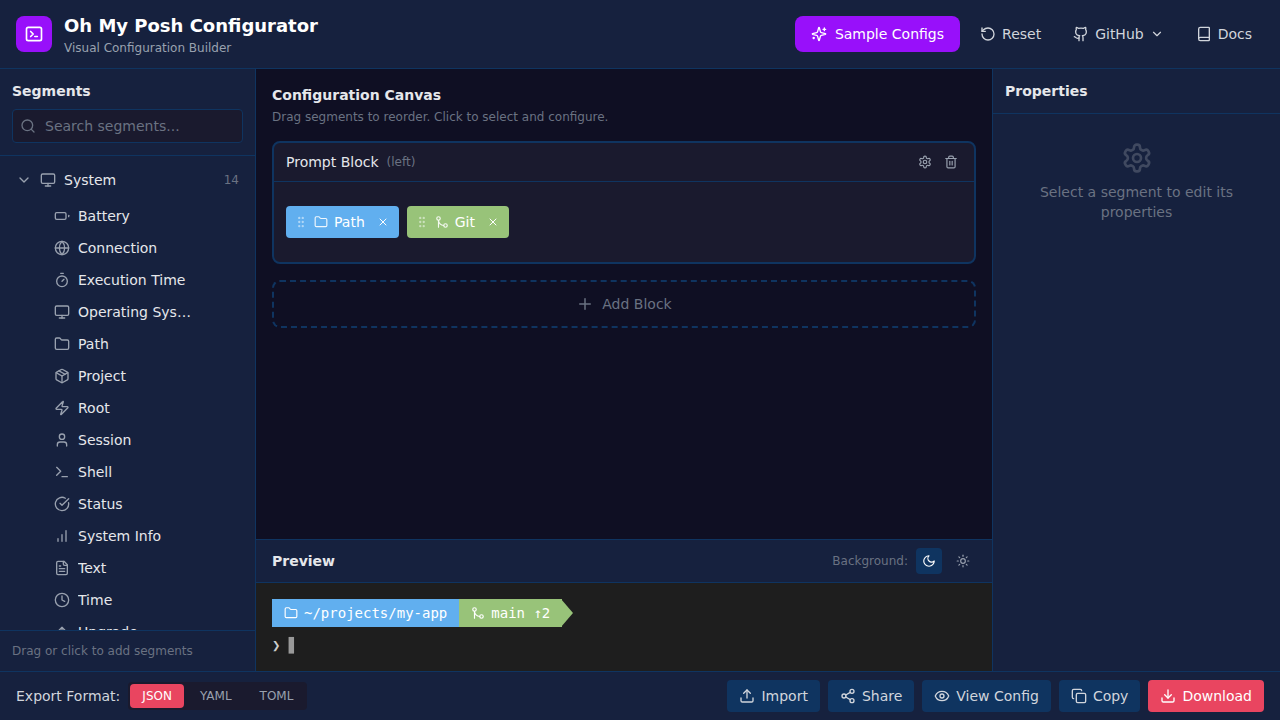
The Oh My Posh Visual Configurator solves this problem with a modern, intuitive web interface. No installation required—just open your browser and start building!
What Can You Do With It?
🎨 Browse 103+ Segments
The left sidebar gives you access to every segment Oh My Posh supports, organized into logical categories:
- System: Path, OS, Shell, Session, Battery, Time, Execution Time
- Version Control: Git, Mercurial, SVN, Fossil, and more
- Languages: Node.js, Python, Go, Rust, Java, .NET, PHP, Ruby... basically everything
- Cloud & Infrastructure: AWS, Azure, GCP, Kubernetes, Docker, Terraform
- CLI Tools: NPM, Yarn, Angular, React, Flutter
- And more: Music players, health trackers, weather widgets
🖱️ Drag-and-Drop Interface
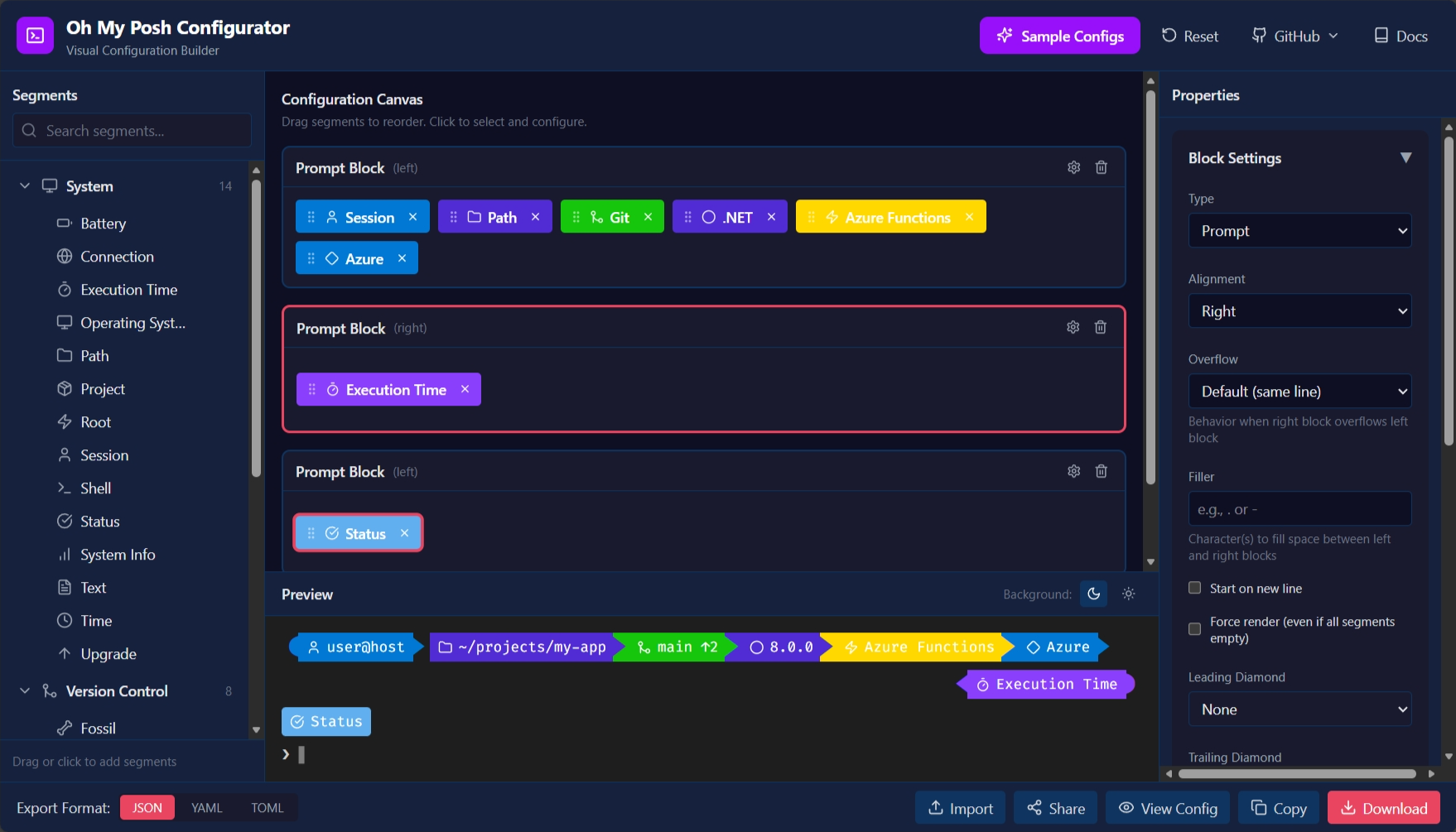
Just click a segment to add it to your prompt, or drag it exactly where you want it. Reordering is as simple as dragging segments around. Want to move that Git status before your path? Just drag it there!

⚡ Live Preview
This is where it gets really cool. Every change you make shows up instantly in the preview panel at the bottom. Toggle between dark and light terminal backgrounds to make sure your theme looks great everywhere. The preview even renders powerline arrows and diamond shapes accurately!
🎛️ Full Customization
Click any segment and the Properties Panel opens up with everything you need:
- Style Selection: Powerline, Plain, Diamond, or Accordion
- Color Pickers: Full hex color support for foreground and background
- Template Editor: Customize exactly what each segment displays using Go templates
- Block Settings: Configure prompt alignment, add new blocks, or create right-aligned prompts
📦 Import & Export
Already have an Oh My Posh config? Import it! The configurator supports JSON, YAML, and TOML formats. When you're done, export in whichever format you prefer and drop it right into your shell configuration.
Community Sharing 🤝
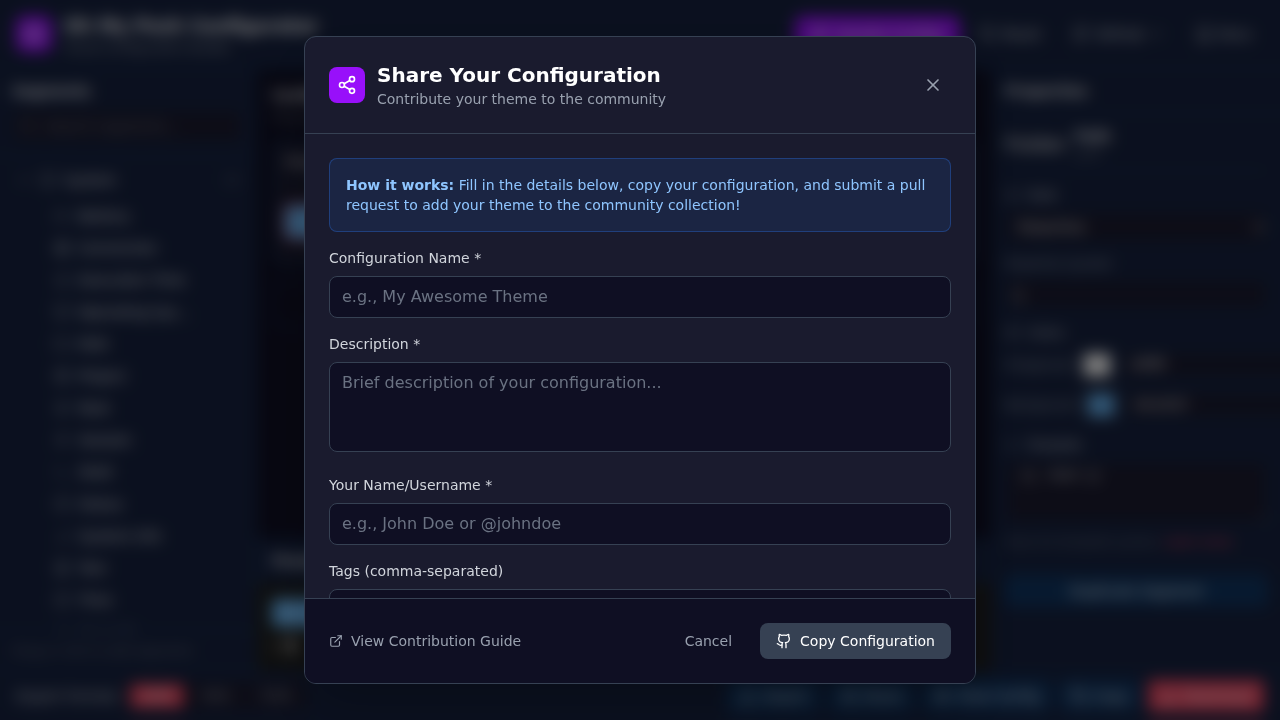
One of my favorite features is community sharing. Found the perfect configuration? Share it with everyone!
- Click the Share button in the header
- Fill in your theme details—name, description, tags
- Submit your configuration
- Your theme appears in the Community collection for others to use
This means you can browse themes created by other developers, try them instantly in the configurator, and tweak them to match your style. The community grows together!
Under the Hood: Some Fun Architecture Decisions 🏗️
For my fellow developers who enjoy the technical details, here's what's powering this thing:
React 19 + TypeScript + Vite
I went with the latest React 19 for this project, paired with TypeScript for type safety (trust me, when you're dealing with complex configuration objects, types are your friend). Vite provides blazing-fast builds and hot module replacement that makes development a joy.
@dnd-kit for Drag-and-Drop
After evaluating several drag-and-drop libraries, @dnd-kit won out. It's modern, accessible, performant, and plays nicely with React 18+. The sortable preset made implementing segment reordering straightforward, and it handles edge cases like keyboard navigation out of the box.
Zustand for State Management
I'm a big fan of Zustand for state management. It's lightweight, has zero boilerplate, and the persistence middleware lets me save your configuration to localStorage automatically. Your work is never lost!
// Simplified example of our store structure
const useConfigStore = create(
  persist(
    (set) => ({
      config: defaultConfig,
      addSegment: (blockId, segment) => set((state) => /* ... */),
      updateSegment: (blockId, segmentId, updates) => set((state) => /* ... */),
      // ...
    }),
    { name: 'ohmyposh-config' }
  )
)
Dynamic Segment Loading
With 103+ segments, loading everything upfront would be wasteful. Instead, segment metadata lives in separate JSON files by category (public/segments/*.json), loaded on demand when you expand a category. This keeps the initial bundle small and the UI snappy.
Tailwind CSS 4.1
Styling is handled by Tailwind CSS 4.1, which gives us:
- Consistent design tokens
- Dark theme by default (it's a terminal tool after all!)
- Rapid iteration on UI polish
- Small production bundles through automatic purging
100% Client-Side
Your configurations never leave your browser. Everything runs locally—no backend servers, no data collection, no privacy concerns. Export your config and it's yours forever.
Built with GitHub Copilot & VS Code
Here is what blows my mind about this app is that I built it in under an hour. I started by jotting down a product requirements doc in the GitHub mobile app using Copilot, based on a simple idea. Then I created an issue, assigned it to Copilot, and went to bed. By the next morning, I had a working prototype! I spent about 50 minutes in VS Code adding features like community feeds and cleaning up the code for future updates. Copilot even set up all the GitHub Actions workflows and deployed everything to GitHub Pages in seconds. Turning an idea into a live app in just hours—something that used to take me weeks—is absolutely incredible.
Getting Started in 30 Seconds
- Open the app: https://jamesmontemagno.github.io/ohmyposh-configurator/
- Add segments: Click segments from the left sidebar or drag them to the canvas
- Customize: Click any segment to adjust colors, templates, and styles
- Preview: Watch your prompt update in real-time at the bottom
- Export: Choose JSON, YAML, or TOML and download your configuration
- Apply it:
# PowerShell
oh-my-posh init pwsh --config ~/your-theme.json | Invoke-Expression
# Bash
eval "$(oh-my-posh init bash --config ~/your-theme.json)"
# Zsh
eval "$(oh-my-posh init zsh --config ~/your-theme.json)"
That's it! You've got a beautiful, custom terminal prompt.
Sample Configurations to Get You Started
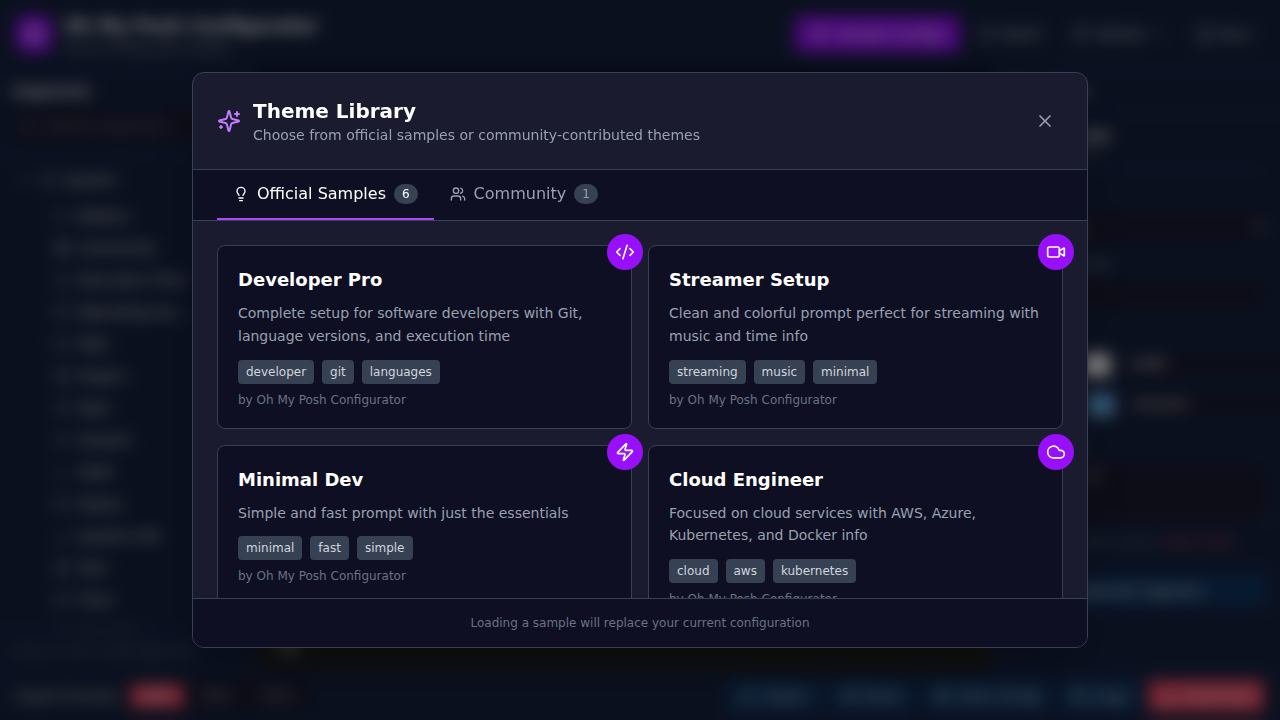
Not sure where to begin? We've included 6 professional sample configurations:
- Minimal: Clean and simple
- Developer: Language-aware with Git integration
- DevOps: Cloud and Kubernetes focused
- Full Featured: All the bells and whistles
- Powerline Classic: Traditional powerline style
- Diamond Style: Rounded segment separators
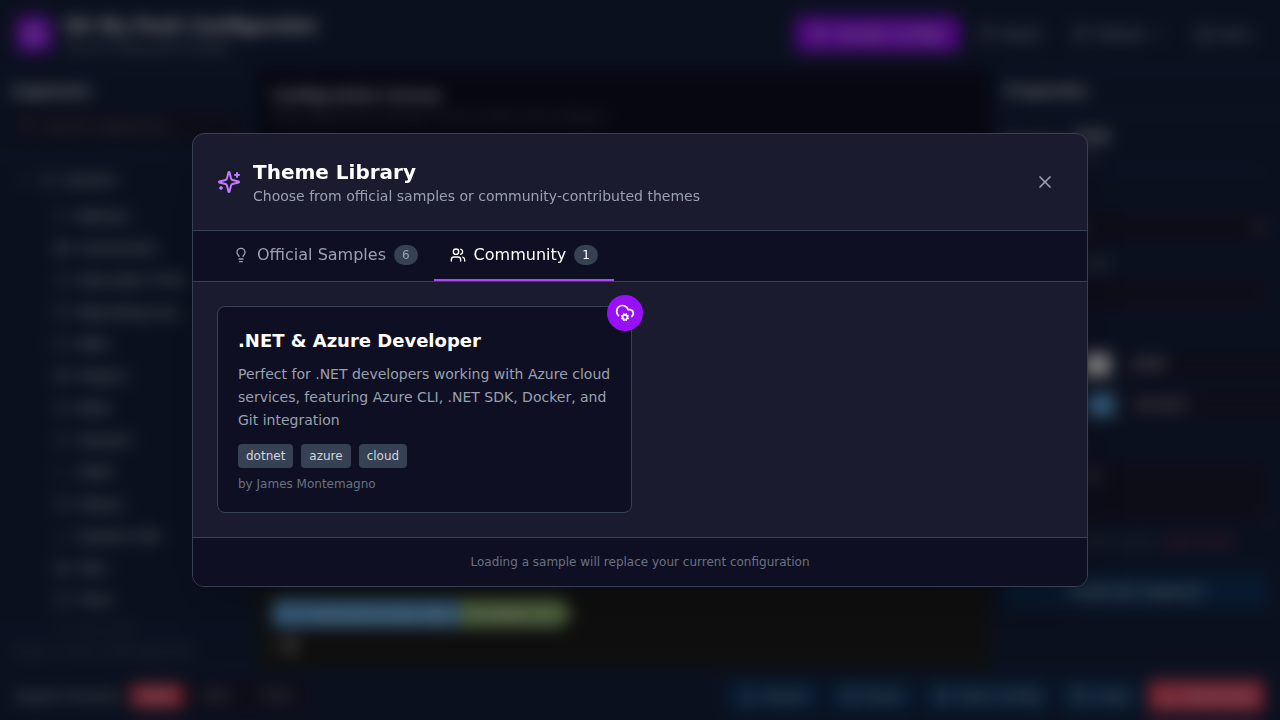
Load any of these from the Sample Picker and customize from there!
What's Next?
I'm really excited about where this project can go. Some ideas on the roadmap:
- More starter templates based on community feedback
- Theme galleries curated by the community
- Advanced template editor with autocomplete
- PWA support for offline use
- Keyboard shortcuts for power users
Try It Out and Let Me Know!
I'd love to hear what you think. Give it a spin at https://jamesmontemagno.github.io/ohmyposh-configurator/ and let me know how it goes!
Found a bug? Have a feature request? Open an issue on GitHub.
Created an awesome theme? Share it with the community using the Share button!
Happy coding, and may your terminal always look beautiful! 🚀
This blog was drafted with GitHub Copilot and Claude Sonnet 4.5 based off previous blogs. Screenshots were taken with the Playwright MCP server using the cloud agent completely autonomously. I reviewed this blog post and tweaked it as necessary.