



Ever since I rebuilt this blog as a static Hugo site with GitHub Copilot CLI, every post is just a Markdown file in a git repo. I love that! But there was one thing that kept bugging me: to see what a post actually looks like, I had to start the whole site with hugo server, wait for it to build, find the post, and then go back and forth between my editor and the browser. And I wanted to do that before sending a pull request, not after the preview deployment came back.
What I really wanted was an elegant little place to pick a post, edit it, and watch it render with all of its images, videos, and embeds. It didn't need to look exactly like the site. It just needed to show me the content on a light or dark background, so I could catch a broken image or a wonky screenshot before anyone else did.
So I asked Copilot to build it for me as a canvas, and this post is the story of how that went. Oh, and every screenshot in this post is of the canvas editing... this post. 🤯
What is a canvas anyway?
A canvas is a panel that a Copilot extension can open right next to your chat. It is plain web content: the extension starts a small local web server, hands the host a URL, and the host shows it in a panel. The extension can also give the agent actions, so Copilot can drive the canvas for you ("open my newest post", "switch to dark mode").
Extensions can live in a few places. I picked workspace scope, which means the canvas lives in my blog repo at .github/extensions/post-workbench/. That has a really nice side effect: the canvas always works on the checkout that contains it, so every branch or worktree sees its own posts, its own edits, and its own git status. That is exactly what I want when I am working on a post in a branch before a PR.
Building it with the create-canvas skill
I started with the create-canvas skill and this (typo-filled, as usual) prompt:
i would like to create a canvas for visualizing our posts, and and allow liveing editing and previeing in the current branch. i want to be able to visualize the images/videos and such like that. it doesn't need to be actually what it woudl look like on the site jsut a preview on a light or dark backgroudn (with toggle)
Just like with my site migration, the best thing I did was let Copilot plan first. It went off and explored the repo: how my posts are laid out, how Hugo mounts static/ and static-case/ for images, which shortcodes I use for YouTube, Vimeo, Fireside, and gists, and how the canvas SDK actually works. Then it asked me a few questions before writing any code:
- Where should it live? Workspace scope, so it ships with the repo.
- How should Markdown be rendered? A vendored copy of marked, so there is no
npm installand no build step. - Should it save automatically? Yes! Autosave on by default, with the option to turn it off.
From there it wrote a plan with 16 todos, I approved it, and it got to work.
Taking a tour
Let's take a look at what came out the other side.
All of my posts, at a glance
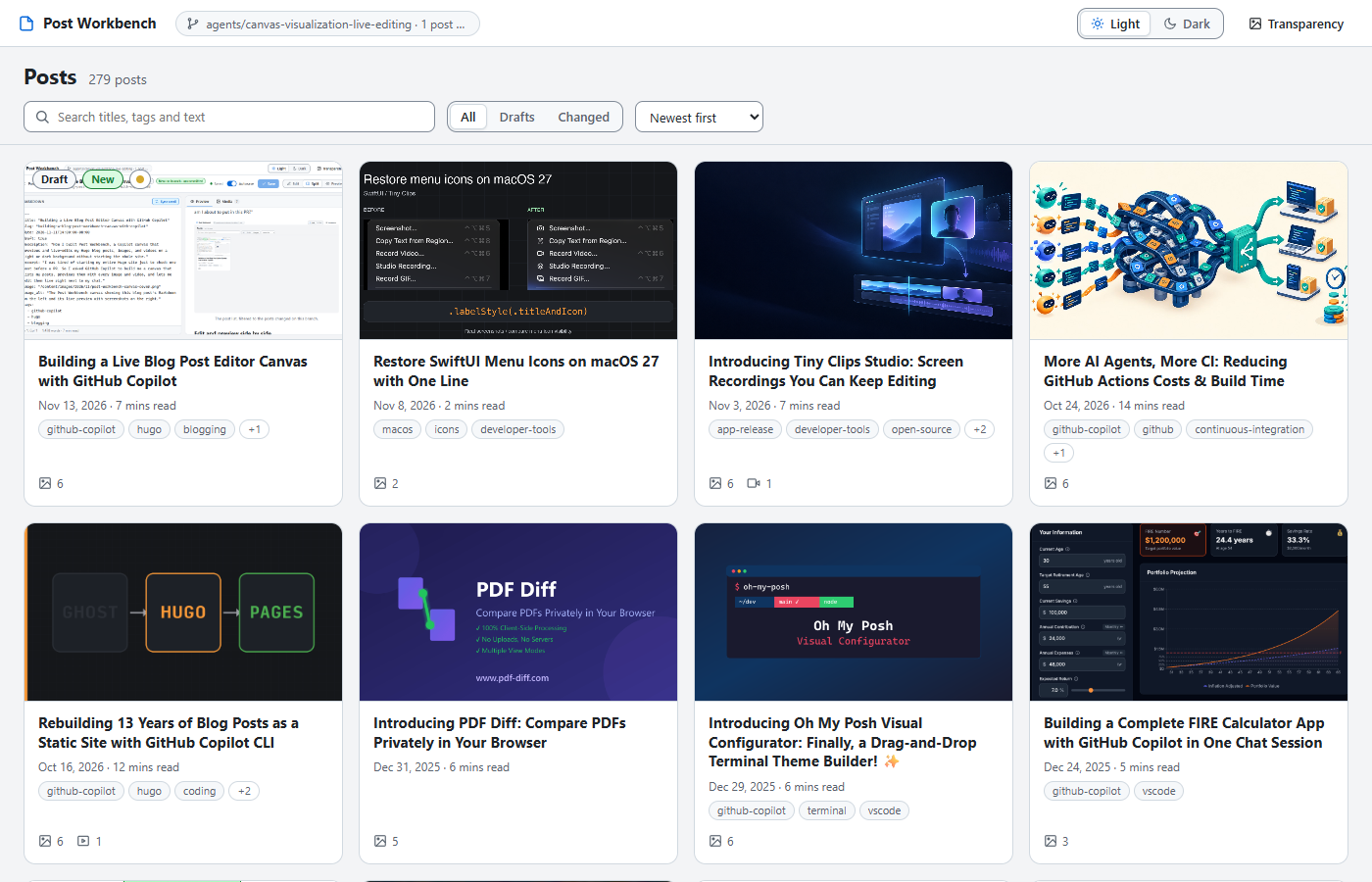
The canvas opens on a grid of every post with its cover image, date, tags, and how many images and videos it has. I can search, filter to drafts, or filter to Changed, which shows only the posts that differ from my main branch or have uncommitted edits. That one is basically "what am I about to put in this PR?"
Edit and preview side by side
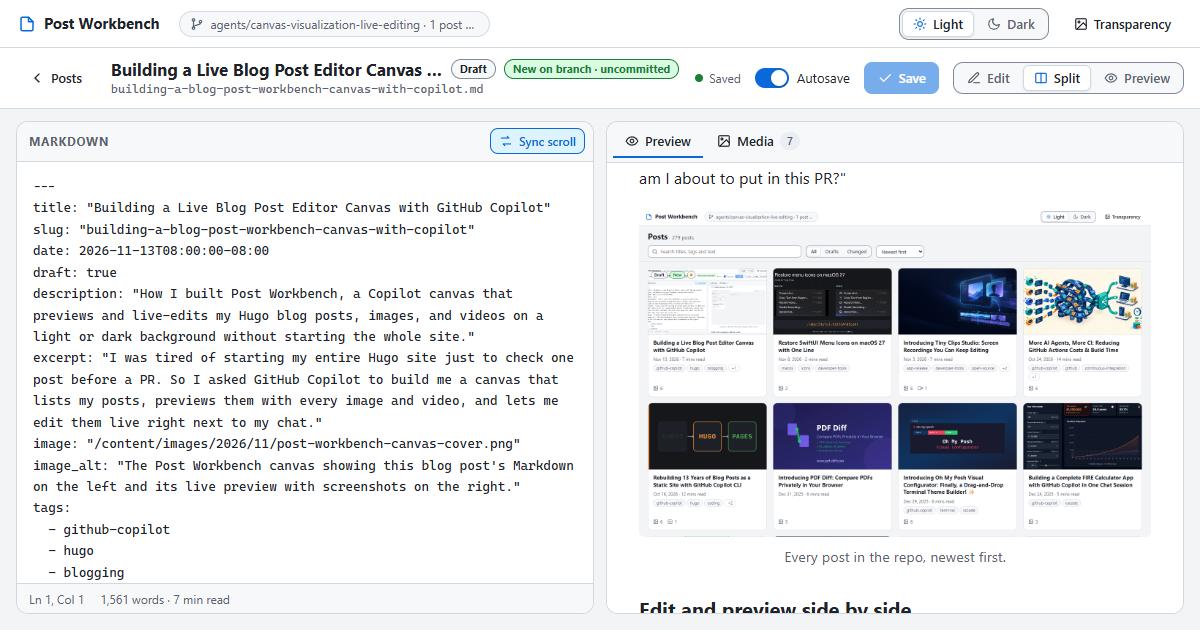
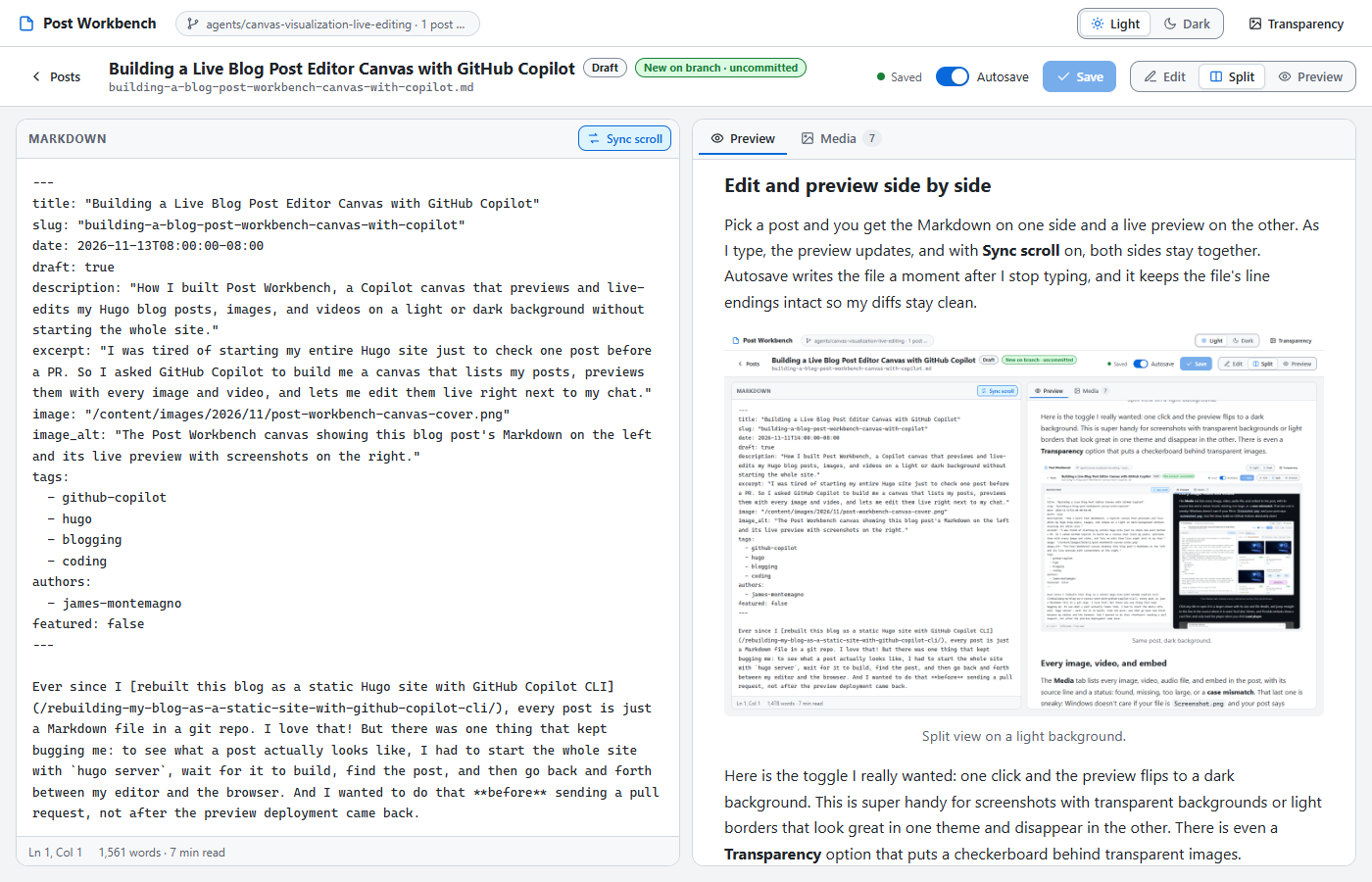
Pick a post and you get the Markdown on one side and a live preview on the other. As I type, the preview updates, and with Sync scroll on, both sides stay together. Autosave writes the file a moment after I stop typing, and it keeps the file's line endings intact so my diffs stay clean.
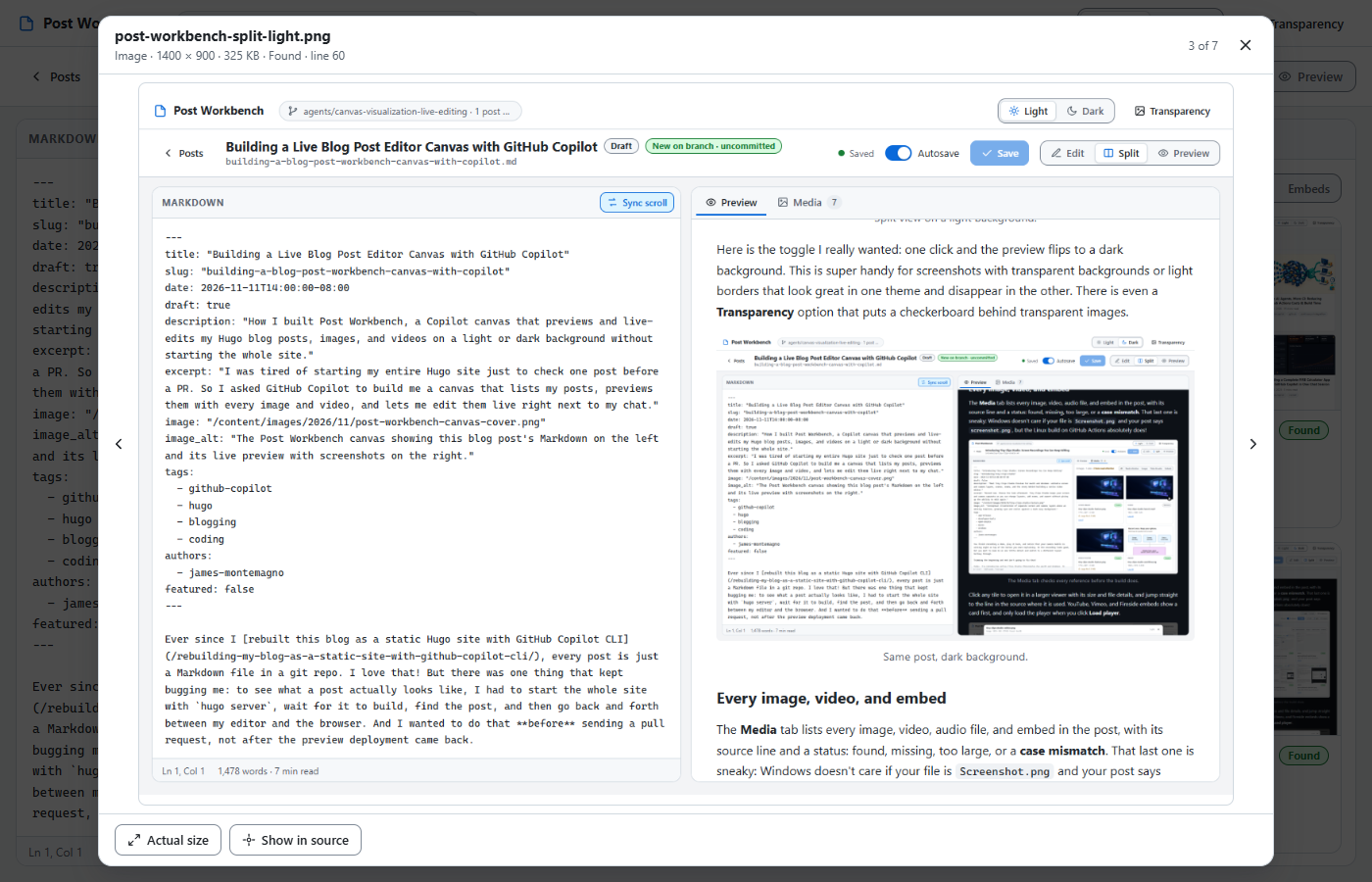
Here is the toggle I really wanted: one click and the preview flips to a dark background. This is super handy for screenshots with transparent backgrounds or light borders that look great in one theme and disappear in the other. There is even a Transparency option that puts a checkerboard behind transparent images.
Every image, video, and embed
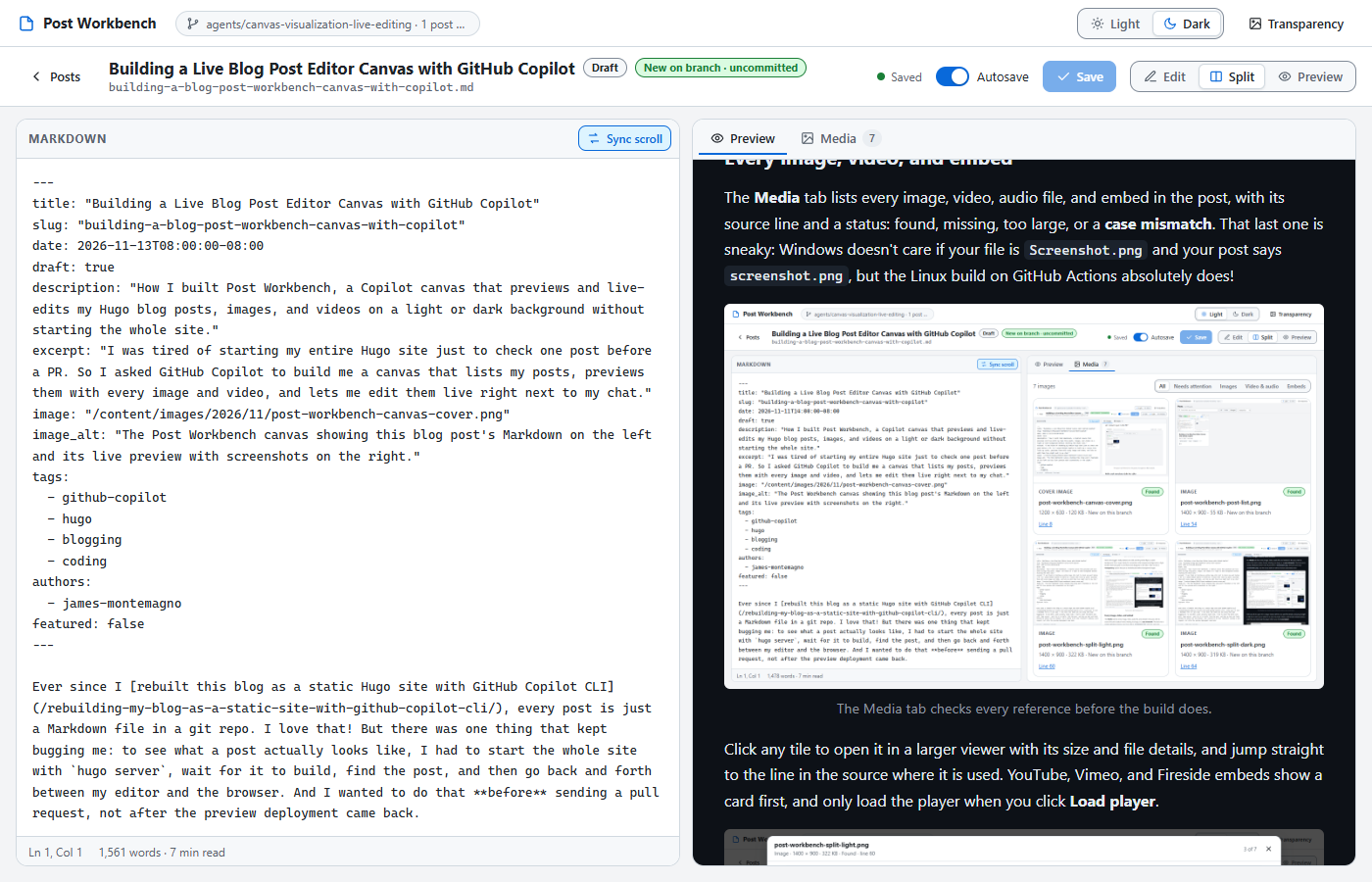
The Media tab lists every image, video, audio file, and embed in the post, with its source line and a status: found, missing, too large, or a case mismatch. That last one is sneaky: Windows doesn't care if your file is Screenshot.png and your post says screenshot.png, but the Linux build on GitHub Actions absolutely does!
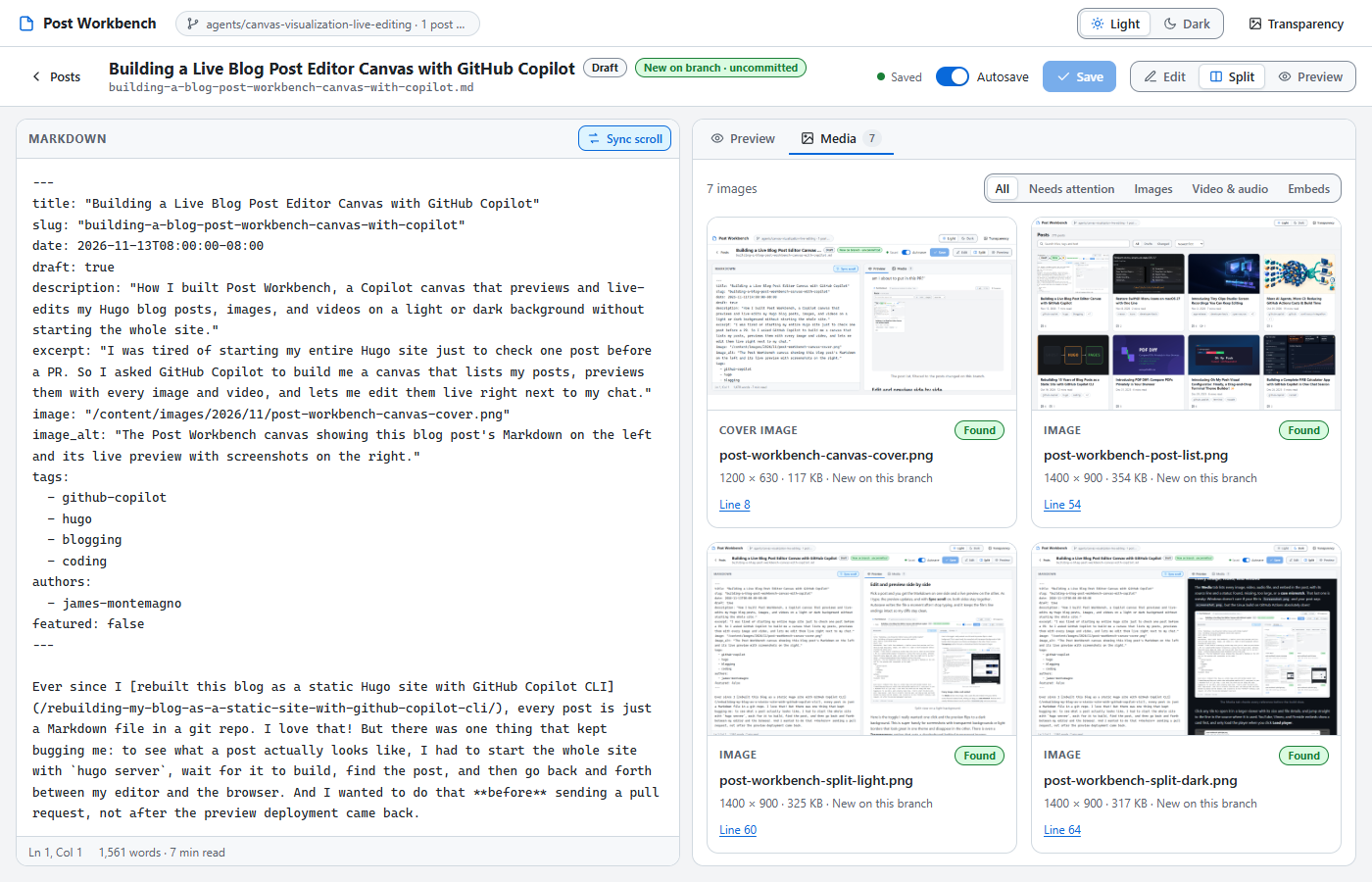
Click any tile to open it in a larger viewer with its size and file details, and jump straight to the line in the source where it is used. YouTube, Vimeo, and Fireside embeds show a card first, and only load the player when you click Load player.
Copilot can drive it, too
Because the canvas exposes actions, Copilot can use it without me touching the panel. I can ask it to list the posts I changed on this branch, open a specific post at a line, check a post's media for problems, or switch the preview to dark. That makes "hey, go check the images in my new post" a real request.
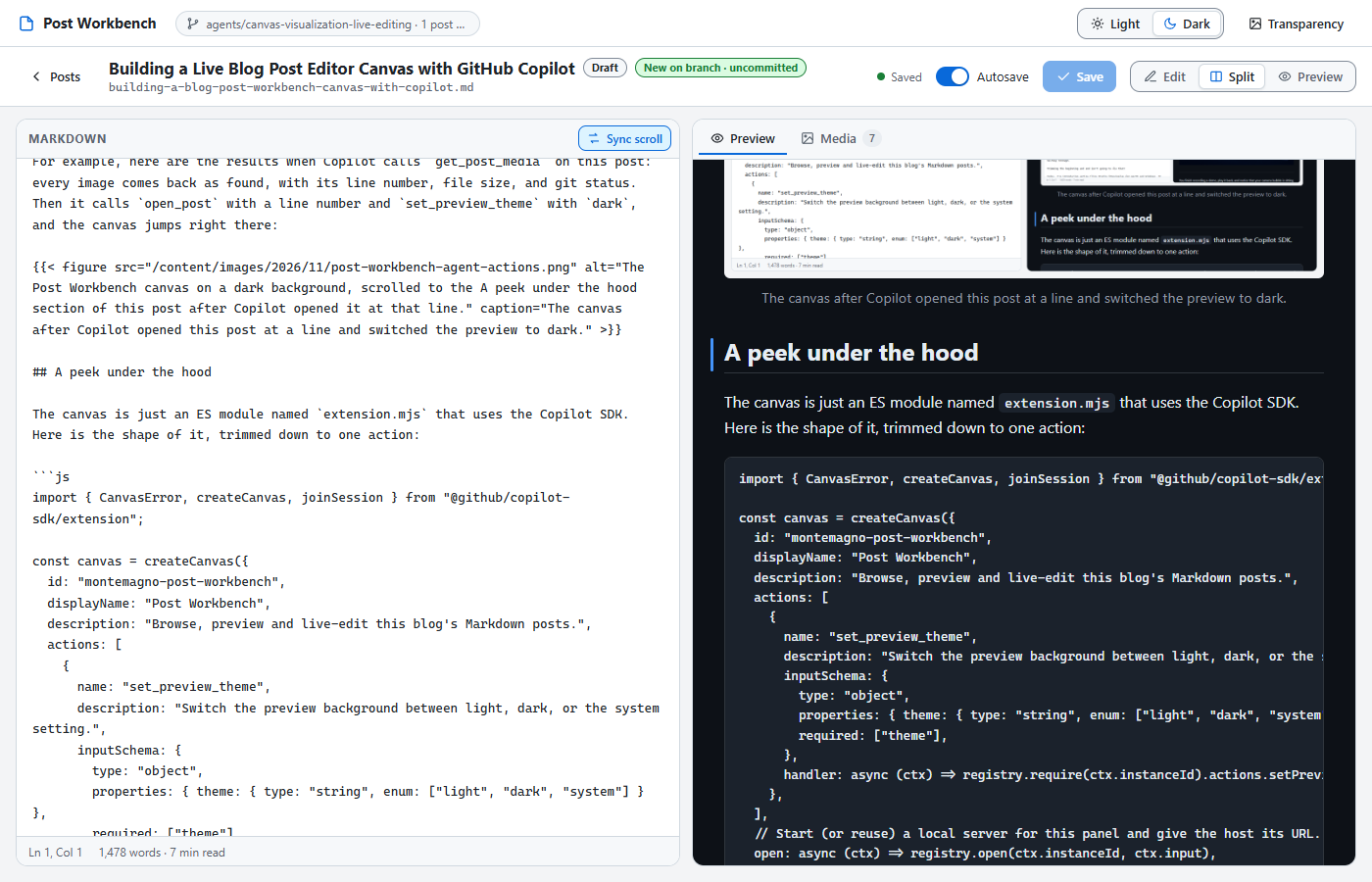
For example, here are the results when Copilot calls get_post_media on this post: every image comes back as found, with its line number, file size, and git status. Then it calls open_post with a line number and set_preview_theme with dark, and the canvas jumps right there:
A peek under the hood
The canvas is just an ES module named extension.mjs that uses the Copilot SDK. Here is the shape of it, trimmed down to one action:
import { CanvasError, createCanvas, joinSession } from "@github/copilot-sdk/extension";

const canvas = createCanvas({
  id: "montemagno-post-workbench",
  displayName: "Post Workbench",
  description: "Browse, preview and live-edit this blog's Markdown posts.",
  actions: [
    {
      name: "set_preview_theme",
      description: "Switch the preview background between light, dark, or the system setting.",
      inputSchema: {
        type: "object",
        properties: { theme: { type: "string", enum: ["light", "dark", "system"] } },
        required: ["theme"],
      },
      handler: async (ctx) => registry.require(ctx.instanceId).actions.setPreviewTheme(ctx.input),
    },
  ],
  // Start (or reuse) a local server for this panel and give the host its URL.
  open: async (ctx) => registry.open(ctx.instanceId, ctx.input),
  onClose: async (ctx) => registry.close(ctx.instanceId),
});

await joinSession({ canvases: [canvas] });
open starts a small web server on 127.0.0.1 with a random port and returns its URL, and calling it again for the same panel reuses that server, so my unsaved edits survive. There is no package.json and nothing to install: the runtime provides the SDK.
Everything else lives in sibling folders: a Node side in lib/ that indexes posts, reads git status, and saves files, and a plain JavaScript browser app in web/ with no build step. A few details I really appreciated:
- Saves are safe. Files are written to a temporary file and then swapped in, so a crash can't leave half a post. If the file changes on disk while I have unsaved edits (say, Copilot edited it in chat), I get to choose which version wins instead of silently losing one.
- Post content is treated as untrusted. The preview is rebuilt from an allowlist of safe HTML, a content security policy backs that up, and embeds run in sandboxed frames.
- Preferences stay out of the repo. Things like the light or dark choice are stored under my Copilot home folder, not in git.
One gotcha worth knowing if you build your own: never use console.log in an extension. Standard output is how the extension talks to the host, so stray logging can break the connection. Use session.log() instead.
Testing it for real
This is where working with an agent really shines. It didn't stop at "it compiles." Copilot wrote more than 140 tests for the Node side and the rendering, ran them on Node 20, 22, and 26, and then drove the canvas in a real browser to check editing, autosave, conflicts, keyboard navigation, narrow panels, and dark mode. It even rendered all of my posts in the preview to make sure none of them broke it.
That testing caught real bugs. The Skip to content link was quietly closing the open post, because the canvas uses the URL hash for navigation. A test that passed on my machine flaked under load because of a timing race. And the test command itself behaved differently on Node 20 and Node 22.
Then I had Copilot run a separate code review, and it found the scariest one of all: if a post briefly disappeared or couldn't be read (think git stash, switching branches, or Windows holding a lock on the file), the canvas treated it as deleted and threw away my unsaved edits. Yikes! Now only a file that is truly gone counts as removed, the edits are kept as a draft, and editing picks right back up when the file comes back. All of these got fixed before I ever hit them, which is exactly what I want from my AI pair programmer.
Try it or build your own
If you have a Markdown blog or docs site in a repo, this is a fun one to build for yourself. Start with the create-canvas skill, tell it what you want to see and edit, and let it plan before it codes. Keep it in your repo with workspace scope, so it follows whatever branch you're on.
As for this post, it was previewed and checked in the canvas, right next to my chat, with no hugo server in sight. That is exactly the workflow I was after before sending a PR!